Storeganise supports managing rental agreements in a variety of contexts. From simple Customer Portal e-signed submissions, re-signing a new agreement after changes to the rental, to uploading a paper contract signed in person.Use this article to learn how to view the full agreement history, ask a customer to sign again, handle agreements after a unit transfer, and upload an agreement a customer signed on paper.
How agreements are stored
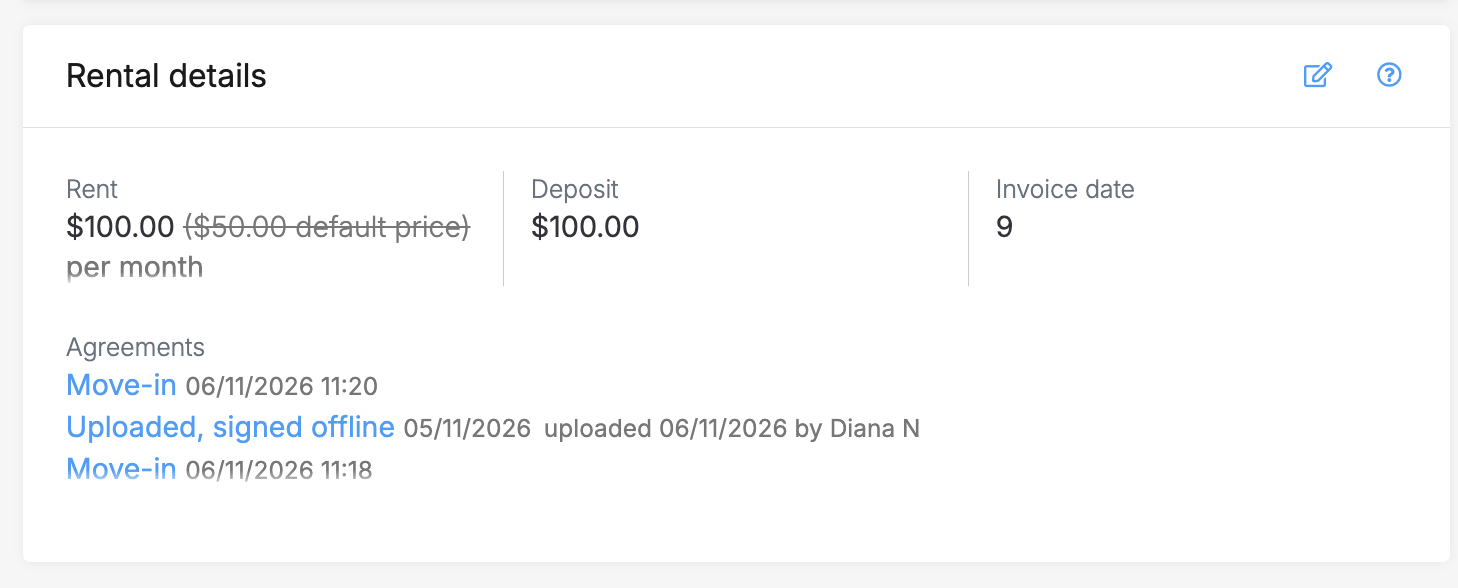
Each agreement a customer signs in the Customer Portal is saved to the unit rental's Agreements list. This is found at the top of a unit rental page in the Rental details section.Adding a new agreement never replaces or removes an earlier one. A unit rental can hold agreements created for different reasons: a move-in, a unit transfer, a re-sign request, or a rebuilt PDF.Note: Online signing and re-sign requests only work at sites that have rental agreements turned on. See: Enable your rental agreement per site
Types of agreements on a unit rental
The unit rental page lists every agreement on the rental, with the newest at the top. Each entry shows why the agreement was created and when it was signed.
The reason shown for each agreement is one of these:
Move-in
Standard e-signed agreement upon initial move-in
Re-sign
New agreement e-signed after initiated by staff
Uploaded, signed offline
Uploaded PDF document when physically signed in person
Transfer
New agreement signed reflecting the new unit and rental details
Rebuilt
Agreement regenerated internally, such as when fixing formatting issues.
Ask a customer to sign an agreement
Request a re-sign when a customer needs to sign a new version of their agreement, such as after a rent price change.
Accessing the agreement option from the unit rental menu
Open the unit rental.
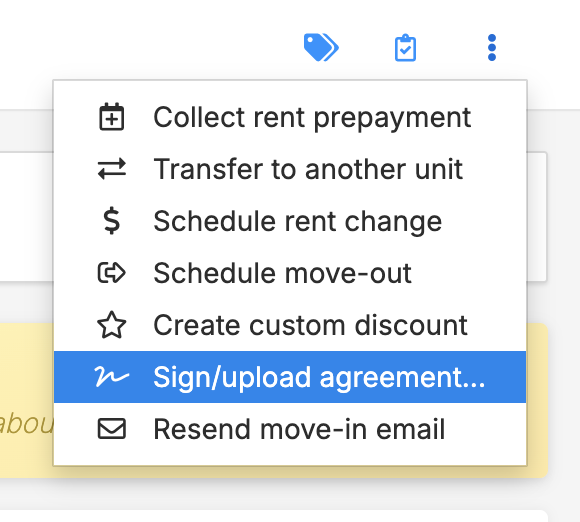
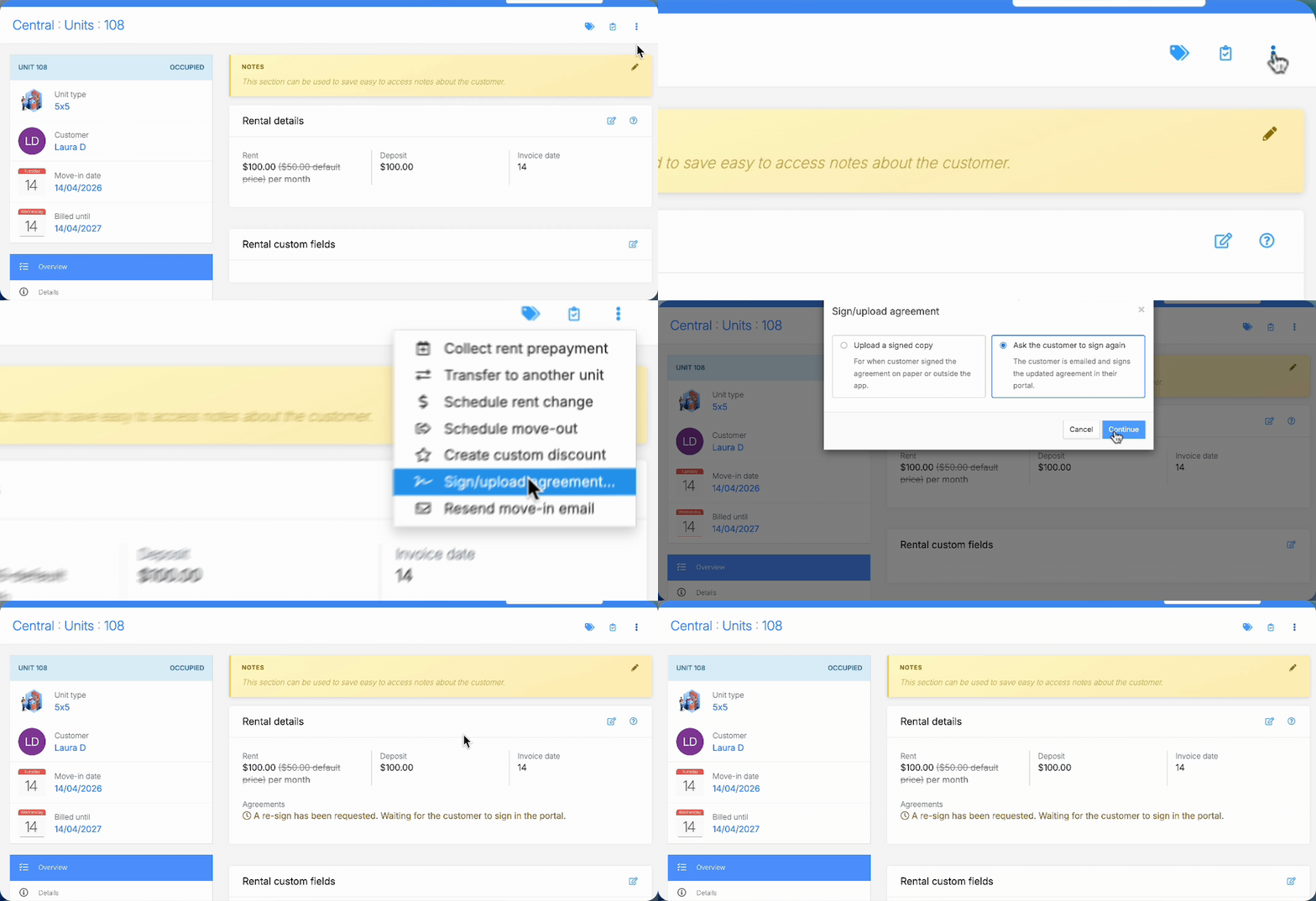
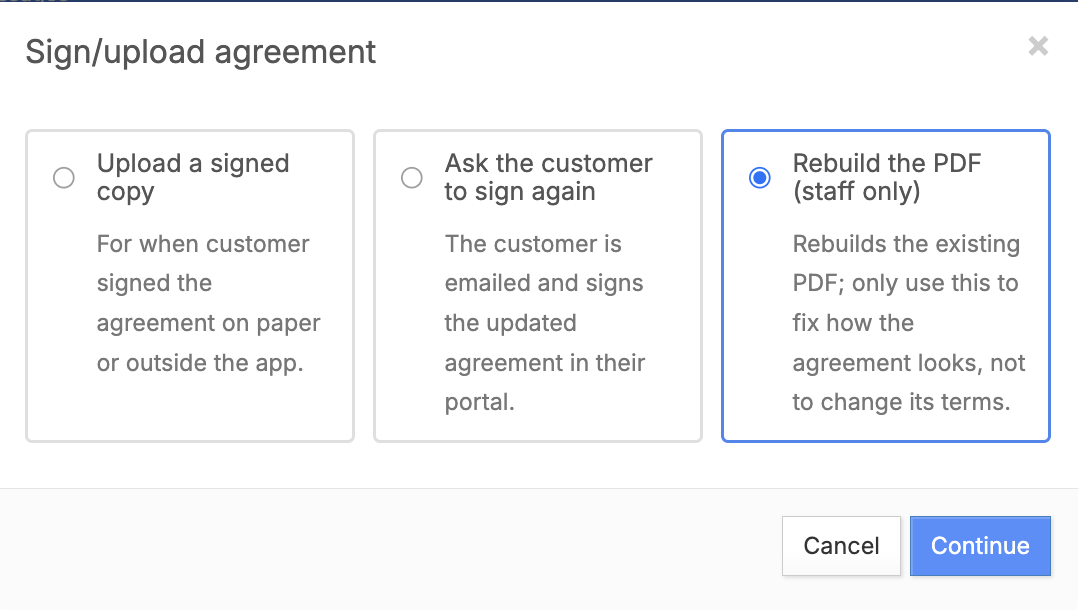
Click the three-dot menu, then click Sign/upload agreement….
Choose Ask the customer to sign again and continue.
Confirm the request.
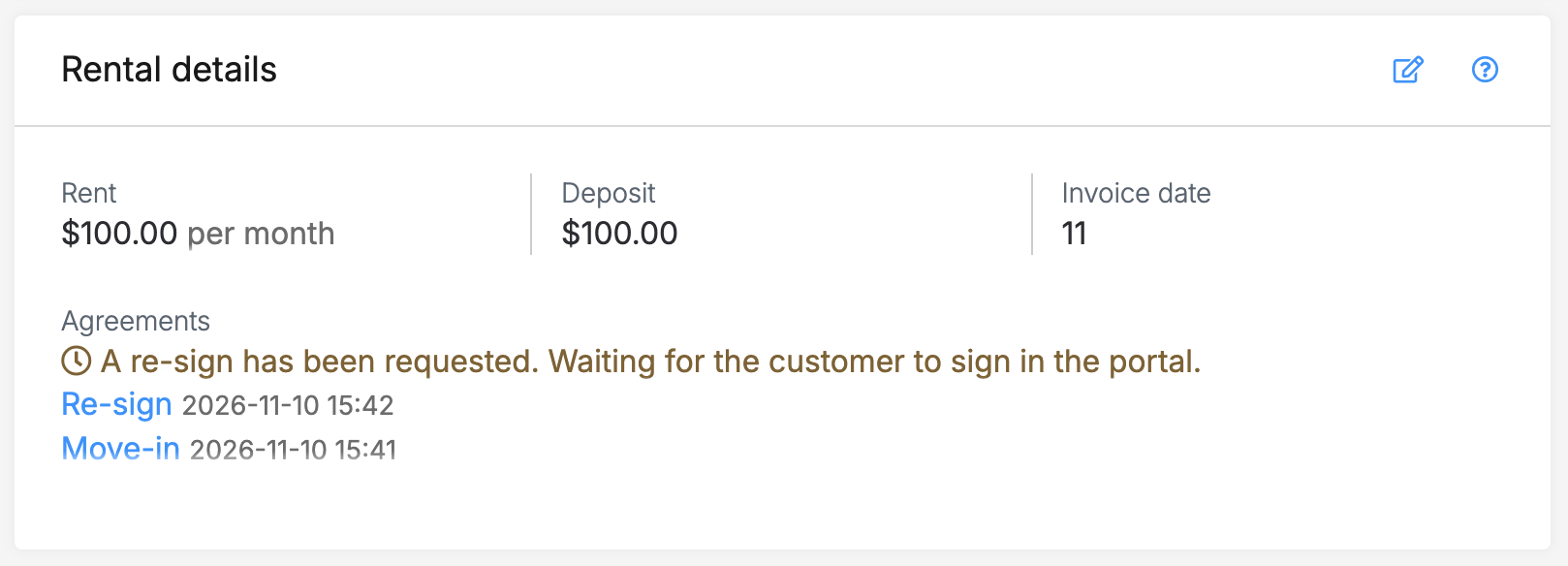
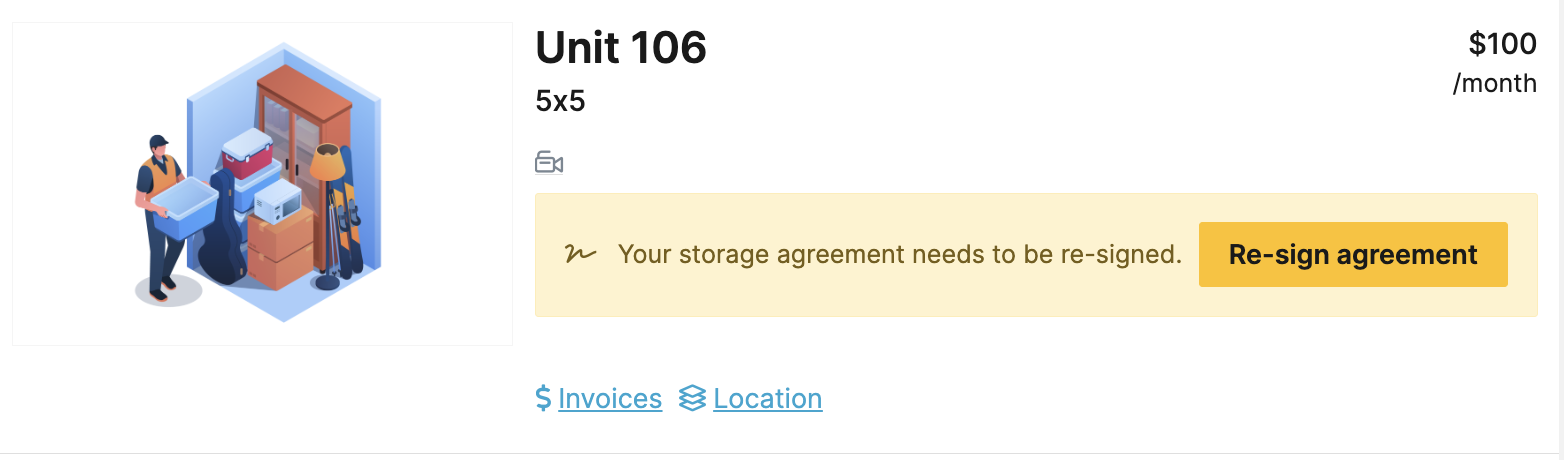
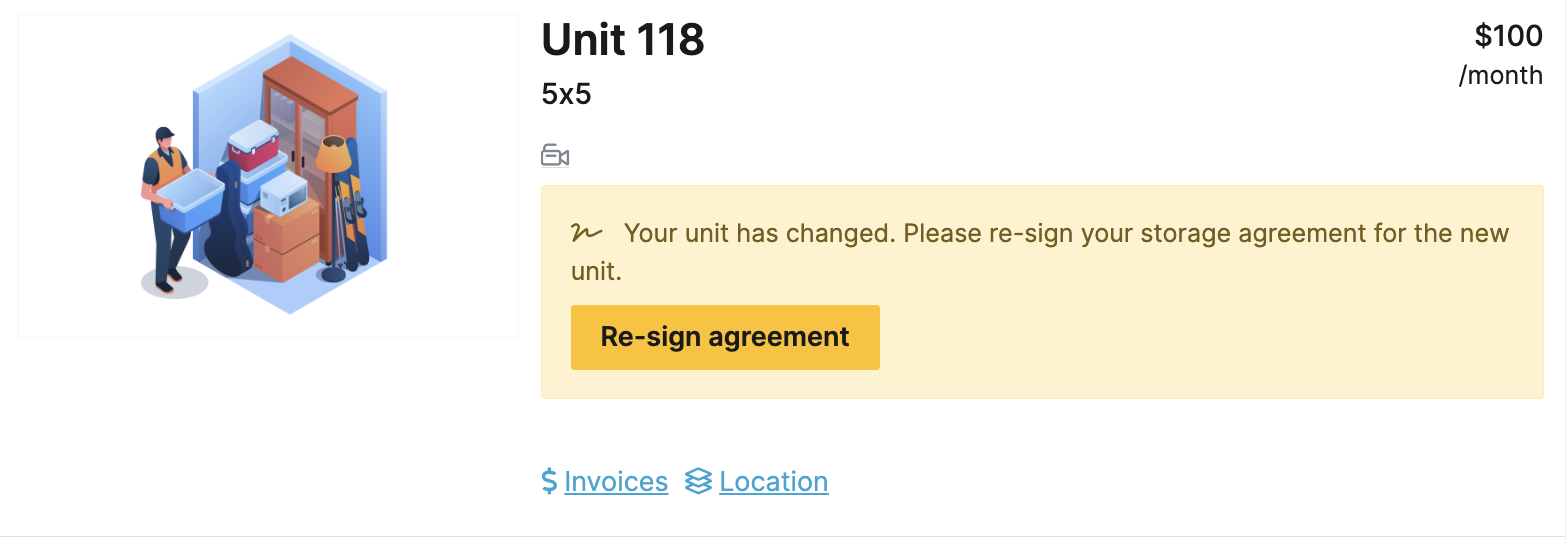
The customer receives an email and sees a prompt on their unit in the Customer Portal. While the request is open, the unit rental shows that it is waiting for the customer's signature. When the customer signs, the new agreement is added to the list and any older agreements remain.The re-sign email uses its own email template. To change its wording, edit it in your email settings. See: Editing email templates
How it looks on the Customer Portal
Note: The window only shows the options that apply to that unit rental. If you don't see it, check that online agreement signing is turned on for the site.
Agreements after a unit transfer
A unit transfer asks the customer to sign a fresh agreement for the new unit.
How it looks on the Customer Portal
The customer sees the sign prompt in the Customer Portal straight away.
No email goes out until a staff member requests one. To send the email, follow the steps in the section above.
The transfer goes ahead whether or not the customer has signed.
If you transfer a unit to a site that doesn't have online agreement signing turned on, the customer isn't asked to sign again. The existing agreements carry over to the new unit rental instead.
Upload an agreement signed on paper
Upload a PDF when a customer signs a printed agreement in person. The PDF is saved to the unit rental's agreement list and can be accessed by the user in the Customer Portal. Uploading never replaces or removes earlier agreements.You can upload a signed copy at any time from the unit rental page, or from the agreement task during a pending move-in.
Upload from the unit rental page
Open the unit rental.
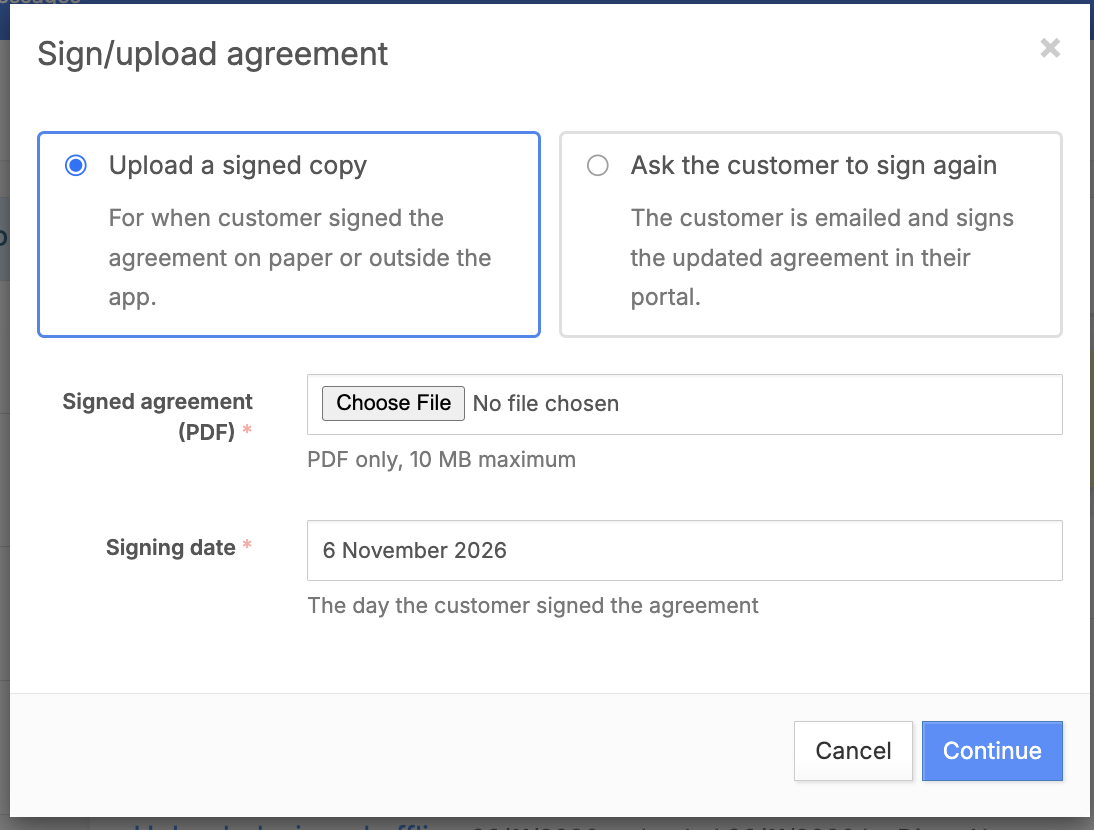
Click the three-dot menu, then click Sign/upload agreement….
Click Upload signed copy.
Select the PDF file.
Enter the date the customer signed the agreement. The date defaults to today and can't be in the future.
Click the button to save the upload.
The agreement appears in the list as Uploaded, signed offline.
Upload during a move-in
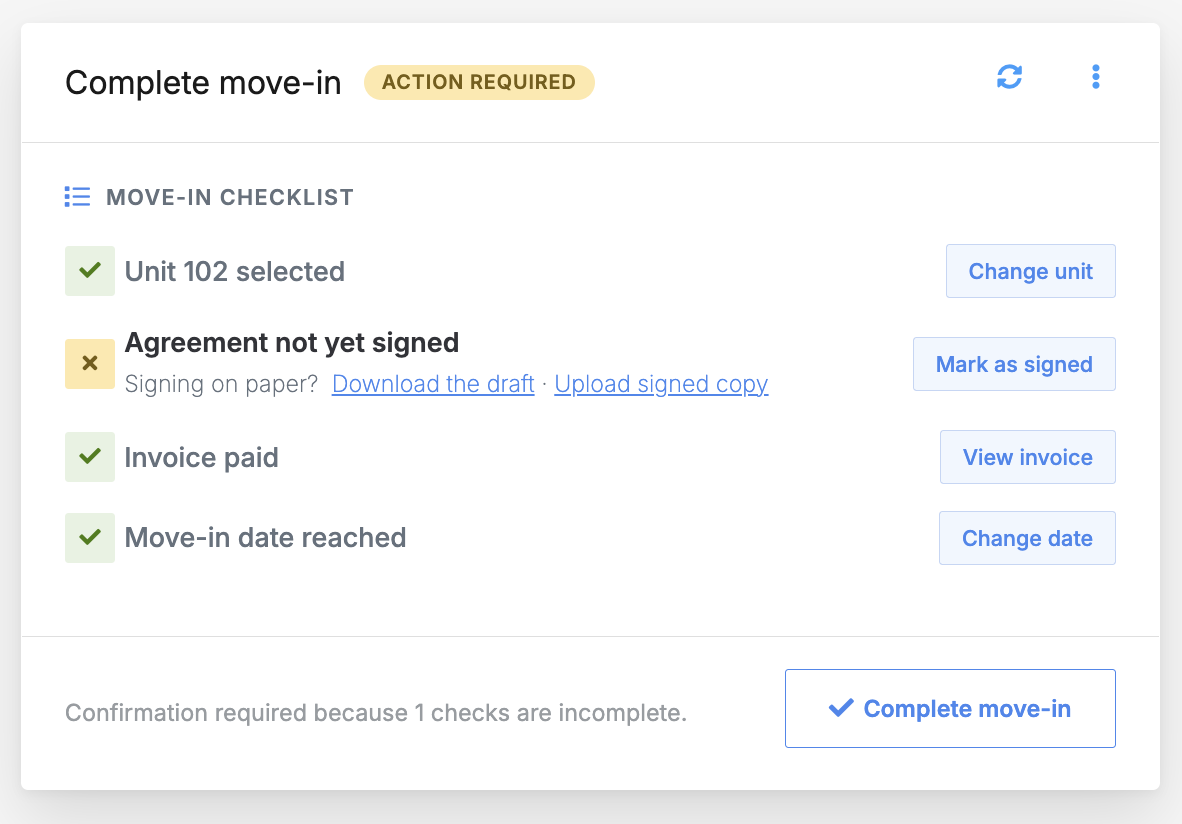
Open a unit rental that is at the Complete move-in (ACTION REQUIRED) step.
In the agreement task, click Upload signed copy.
Select the PDF file.
Enter the date the customer signed the agreement.
Click the button to save the upload.
Uploading the signed copy marks the agreement task as done. If you don't have the signed file yet, click Mark as signed instead. You can upload a scan later from the unit rental page.
Note: Only PDF files are accepted, up to 10 MB.
Rebuild an agreement PDF
Rebuild the PDF when you need a new copy of a digitally signed agreement. The rebuild adds a new copy to the agreement list. It keeps the original signature and signing date, and it does not replace the old file. The list shows the new copy with the reason Rebuilt.
Open the unit rental.
Click the three-dot menu, then click Sign/upload agreement….
Click the option to rebuild the PDF.
Note: The rebuild option isn't offered for an uploaded agreement. A paper agreement has no digital signature to rebuild the PDF from.
 Each agreement a customer signs in the Customer Portal is saved to the unit rental's Agreements list. This is found at the top of a unit rental page in the Rental details section.Adding a new agreement never replaces or removes an earlier one. A unit rental can hold agreements created for different reasons: a move-in, a unit transfer, a re-sign request, or a rebuilt PDF.Note: Online signing and re-sign requests only work at sites that have rental agreements turned on. See: Enable your rental agreement per site
 The reason shown for each agreement is one of these:
 Note: Only PDF files are accepted, up to 10 MB.
 Note: The rebuild option isn't offered for an uploaded agreement. A paper agreement has no digital signature to rebuild the PDF from.