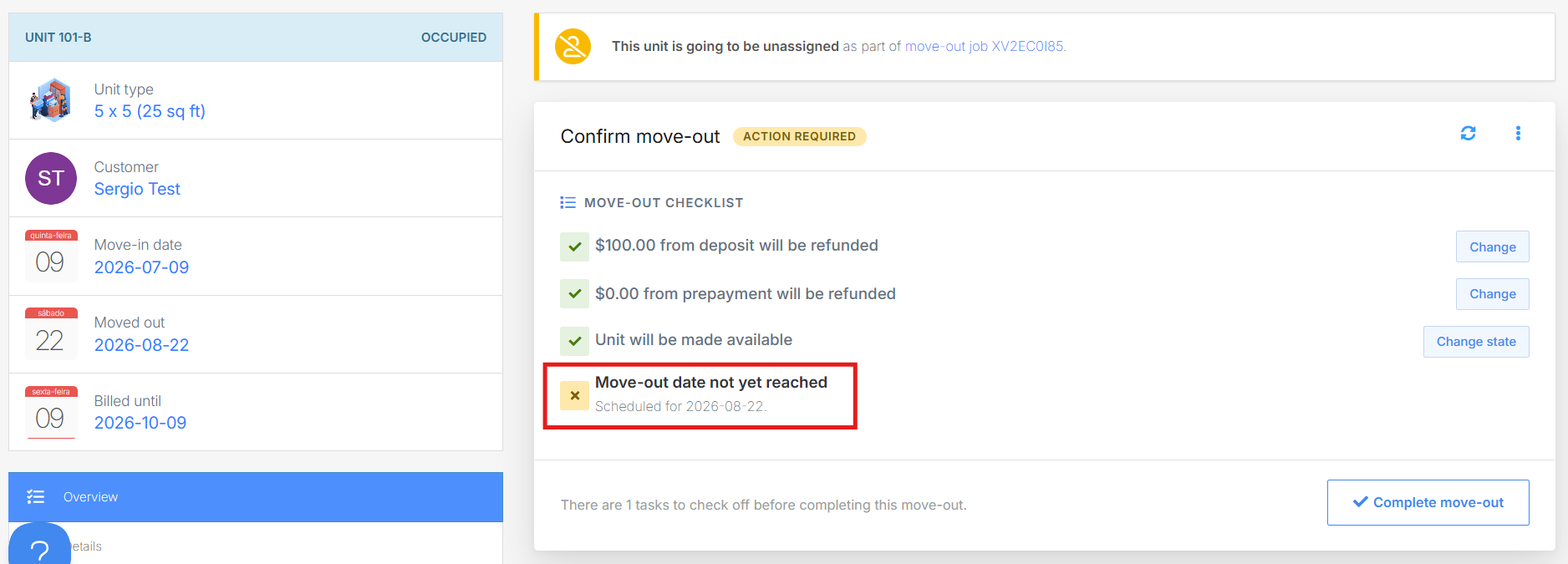
Customers can schedule their own move-out directly from the Customer Portal without needing to contact facility staff. Once scheduled, the move-out job is created in the Management Portal for admins to review and complete using the standard move-out workflow.
Note: this is an optional feature that must be enabled
How customers schedule a move-out
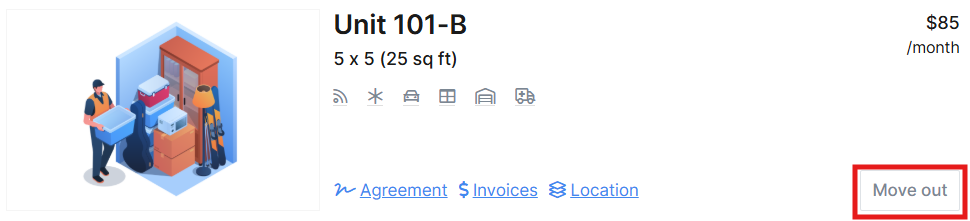
Move out button seen in the Customer Portal
Log in to the Customer Portal.
Go to the Your units page.
Find the active rental and click Move out.
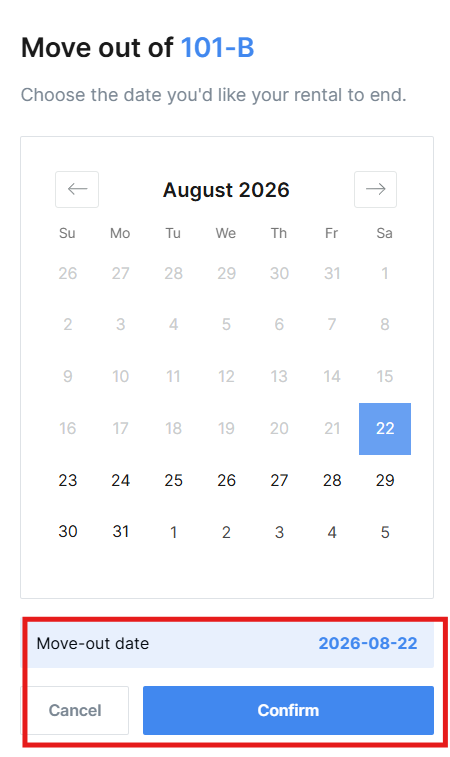
Select the desired move-out date. The calendar only allows dates within the minimum and maximum notice periods configured for the site.
Review the move-out date and click Confirm to submit.
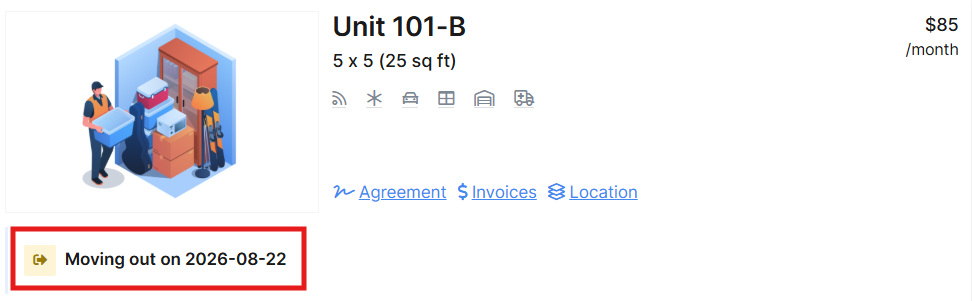
After submitting, the Customer Portal shows a confirmation that the move-out has been scheduled, and the move-out date is displayed on the unit card.
Note: Customers cannot reschedule or cancel a move-out after it has been submitted. If a customer needs to change or cancel a scheduled move-out, they must contact facility staff.
Activation and notice periods
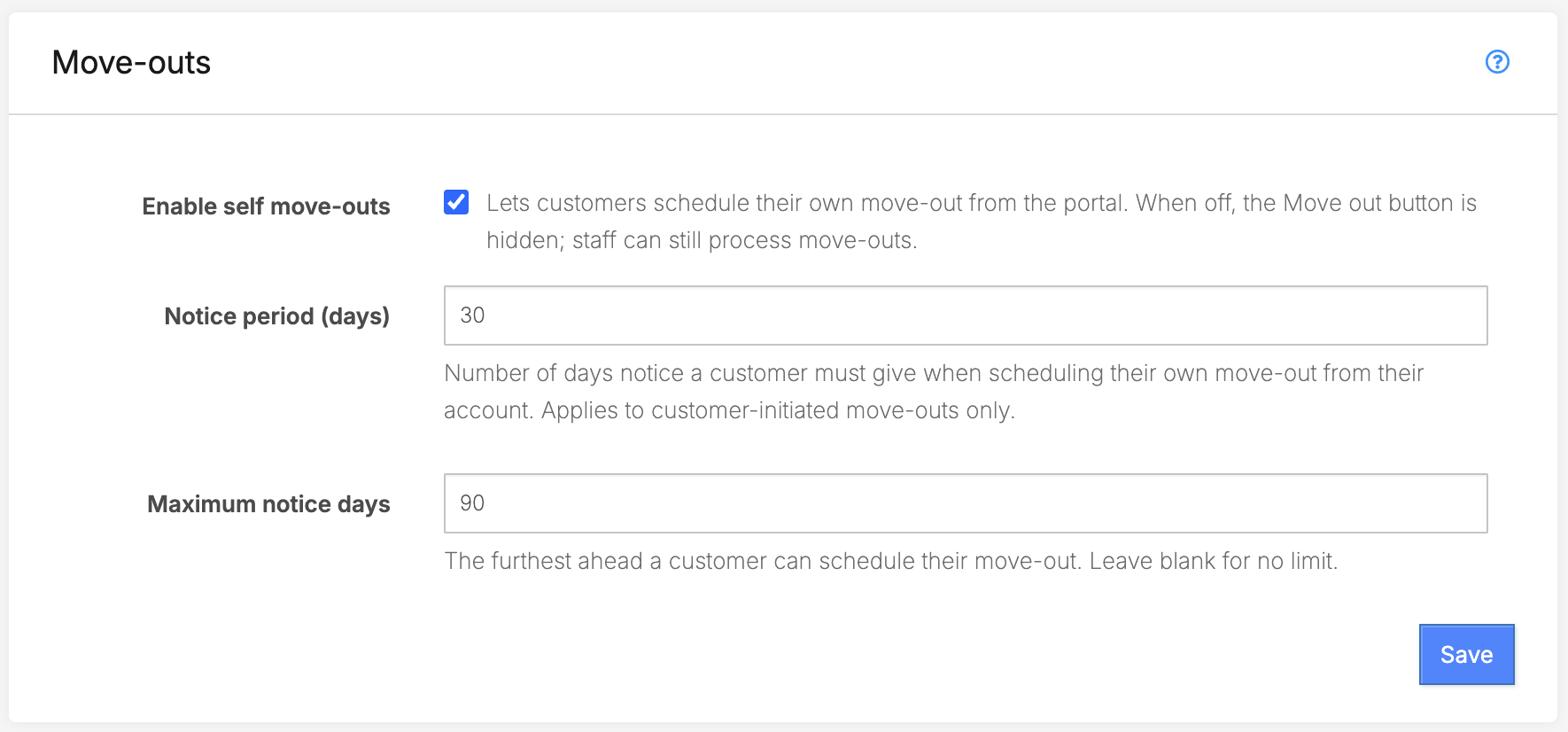
This feature is disabled by default. It must be enabled in your site as explained below.The minimum notice period controls how far in advance a customer must schedule their move-out. Customers cannot select a move-out date that falls before the minimum notice period.The default minimum notice period is 30 days.The maximum notice period controls how far ahead a customer can schedule their move-out. Use it to stop customers booking move-outs months in advance, which keeps your job list focused on upcoming work. This setting is optional. If you leave it blank, customers can schedule a move-out as far ahead as they like.
Go to Sites > [Site] > Advanced settings.
Go to Move-outs and click Enable self move-outs.
Go to the Notice period (days) setting under the move-outs section and enter the minimum number of days required.
Optionally, enter the maximum number of days in the Maximum notice period (days) setting.
Click Save.
What happens after a customer schedules a move-out
When a customer submits a move-out request:
A standard move-out job is created in the Management Portal, identical to one created by an admin.
The move-out appears in the job list with the selected move-out date.
Any automated notifications and actions associated with the move-out job trigger as usual.
Admins review and complete the move-out using the standard move-out workflow.
Can a customer cancel or reschedule a move-out they submitted?No. Once a move-out has been scheduled through the Customer Portal, the customer cannot cancel or change the date themselves. They must contact facility staff to make changes. An admin can update or cancel the move-out job from the Management Portal.Does the admin need to do anything differently for customer-scheduled move-outs?No. The move-out job created by the customer is identical to one created by an admin. Admins review and process it using the same workflow as any other move-out.Can the minimum notice period be set to zero?Yes. Setting the minimum notice period to 0 allows customers to select any date, including today. This effectively removes the notice period requirement.Can I limit how far ahead customers can schedule a move-out?Yes. You can enter a maximum notice period in the site’s advanced settings. Customers can then only select dates between the minimum and maximum notice periods.What happens to move-outs already scheduled beyond the maximum notice period?Nothing. The maximum only applies to new move-outs. Existing move-outs go ahead on their scheduled dates.Is the schedule move-out option available for all rentals?The option appears for active rentals in the Customer Portal. If a rental already has a pending move-out job, the option is not shown.Do automated move-out notifications still send?Yes. Because the customer-scheduled move-out creates the same standard move-out job, all automated notifications and actions tied to the move-out workflow fire as they normally would.Can this function be disabled?Yes. The default move-out automation is disabled, so it is necessary to manually enable this function in the site's advanced settings.
 Note: Customers cannot reschedule or cancel a move-out after it has been submitted. If a customer needs to change or cancel a scheduled move-out, they must contact facility staff.