Accepting payments in a custom booking app
How it works
The custom billing API sits as a gateway-agnostic layer on top of your installed payment Add-on — whether that's Stripe, Mollie, Bpoint, Fortis, or another provider. Your app calls a single set of endpoints regardless of which Add-on is in use. Storeganise handles the hosted checkout UI, tokenisation, and storage of payment details on the provider's side.- Registering a new payment method: send the customer to a hosted checkout page, which handles the entire flow and returns them to your app when done.
- Listing saved payment methods: fetch the customer's stored cards or bank accounts to display in your app's billing section.
Prerequisites
Before using the custom billing API, you need at least one billing Add-on installed and configured on your account. Add-ons can be set up at business level (shared across all sites) or site level (separate per site).Authentication
All custom billing endpoints require an authenticated customer. Send the customer's access token as a Bearer token:Authorization: Bearer {userToken}
fetch /XHR from your app — requests you control and can attach headers to.Step 1: Register a payment method
Registering a payment method is a two-step flow that keeps everything Bearer-authenticated:- Call the checkout endpoint with
Accept: application/jsonto get the hosted-checkout URL. - Navigate the customer's browser to that URL. Storeganise renders the provider's hosted UI, captures and tokenises the payment details, then returns the customer to your
returnUrl.
GET https://{yourcompany}.storeganise.com/api/v1/billing/custom?siteId={siteId}&returnUrl={returnUrl}
Authorization: Bearer {userToken}
Accept: application/json
> {"url":"...."}
| Parameter | Required | Description |
|---|---|---|
siteId | Required when Add-ons are installed at site level | The Storeganise site ID for the site the customer is registering a payment method for. When Add-ons are at business level only, this can be omitted. Checkout always resolves to a single Add-on (a site-level Add-on takes precedence over a business-level one), so — unlike listing payment methods — an empty string can't be used to aggregate across Add-ons here. |
returnUrl | Optional | The URL in your app the customer is sent to after checkout completes. Pass this to return the customer to the page where the checkout flow was initiated. Must be URL-encoded. |
// 1. Fetch the hosted-checkout URL (Bearer-authenticated; Accept: application/json -> { url })
const returnUrl = encodeURIComponent('https://app.yourcompany.com/billing');
const res = await fetch(
  `https://{yourcompany}.storeganise.com/api/v1/billing/custom?siteId=site_xyz&returnUrl=${returnUrl}`,
  { headers: { Authorization: `Bearer ${userToken}`, Accept: 'application/json' } }
);
const { url } = await res.json();

// 2. Send the customer to the hosted checkout
window.location.href = url;
returnUrl . The payment method is stored automatically — no further API call is needed to complete registration.Step 2: List saved payment methods
To display a customer's stored payment methods in your app, call:GET https://{yourcompany}.storeganise.com/api/v1/billing/custom/sources?siteId={siteId}
Authorization: Bearer {userToken}
| Parameter | Required | Description |
|---|---|---|
siteId | No | Filter results to payment methods registered for a specific site. Pass a valid site ID to target one site's Add-on. Pass an empty string to aggregate across all configured Add-ons at site and business level. When omitted, Storeganise falls back to the business-level Add-on. |
[
  {
    "id": "src_abc123",
    "type": "card",
    "brand": "Visa",
    "last4": "4242",
    "expMonth": 12,
    "expYear": 2027
  }
]
id . Most include masked card or account details — such as last4 and brand — suitable for display in your UI.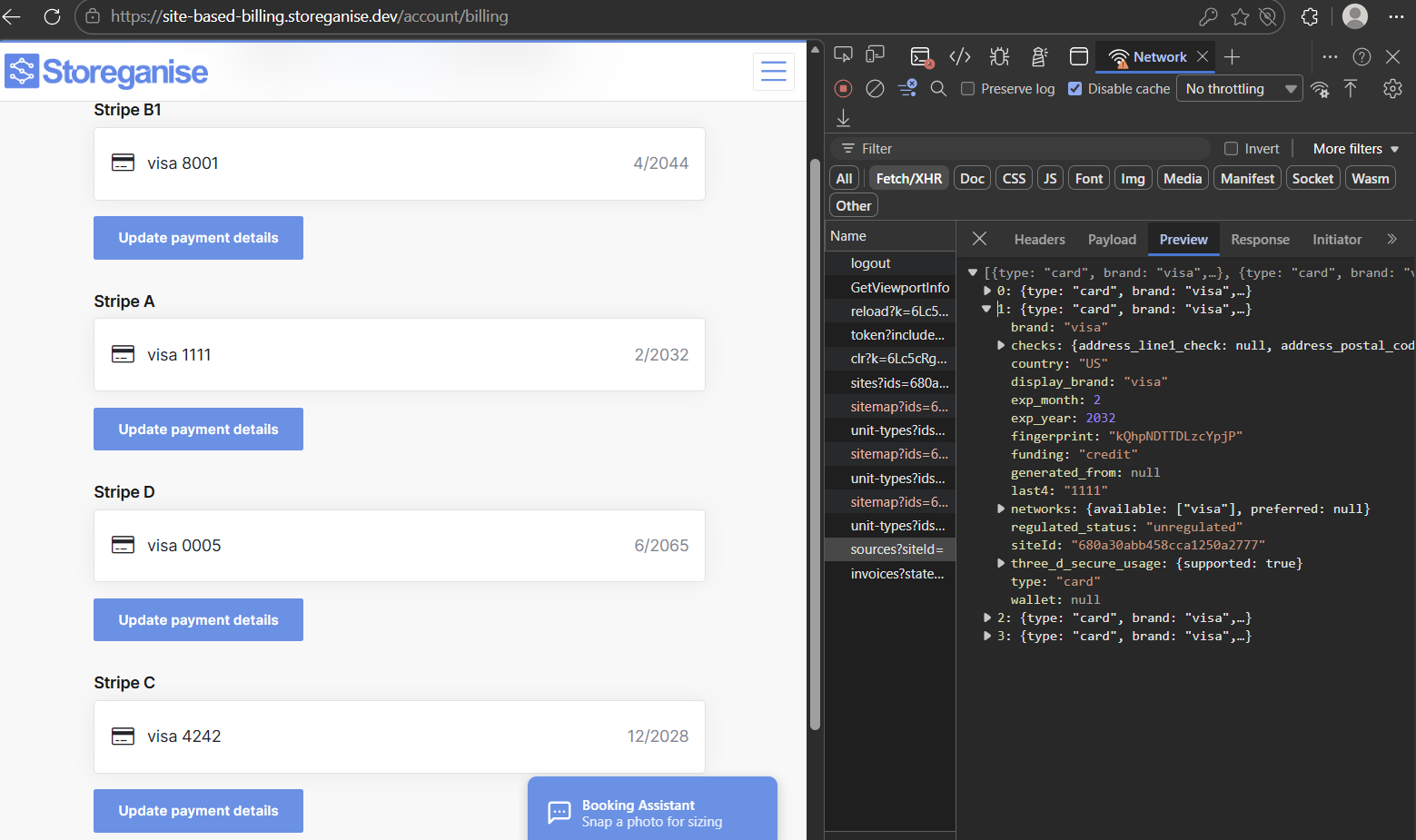
Jump to
Related articles
API FAQ
API best practices
How to replicate functionality in a custom booking flow
Configuring links for a custom user portal