Accounting settings: Self-storage
Self storage tax
The self storage tax section allows you to configure tax settings. Decide between inclusive or exclusive models to align with your business preferences. These settings apply to all invoicing activity across your account.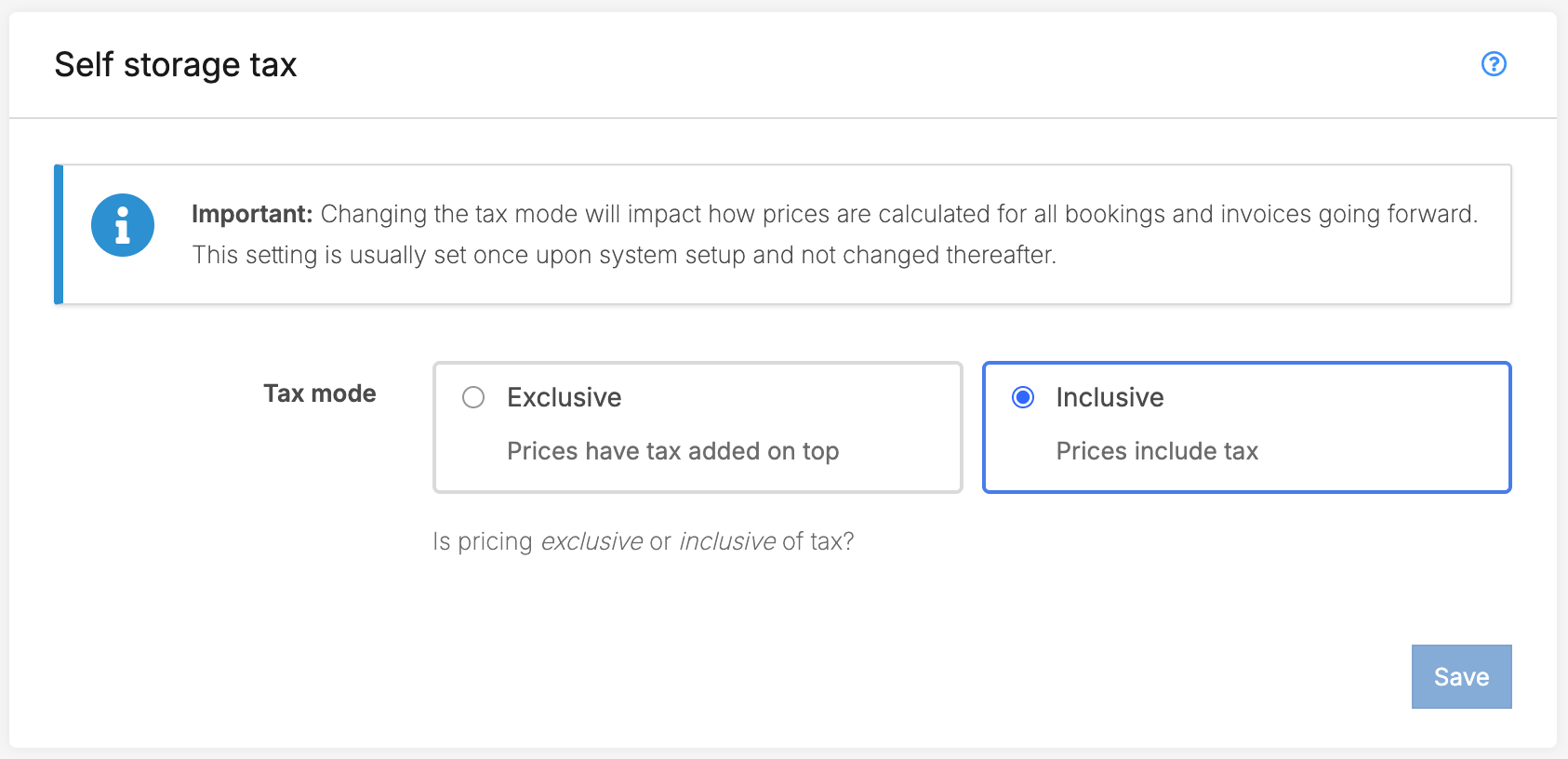
Accounting codes and tax rates
You can setup different accounting codes with their corresponding tax type and tax rate to associate different charges/invoice line items in the system with the correct accounting code/category.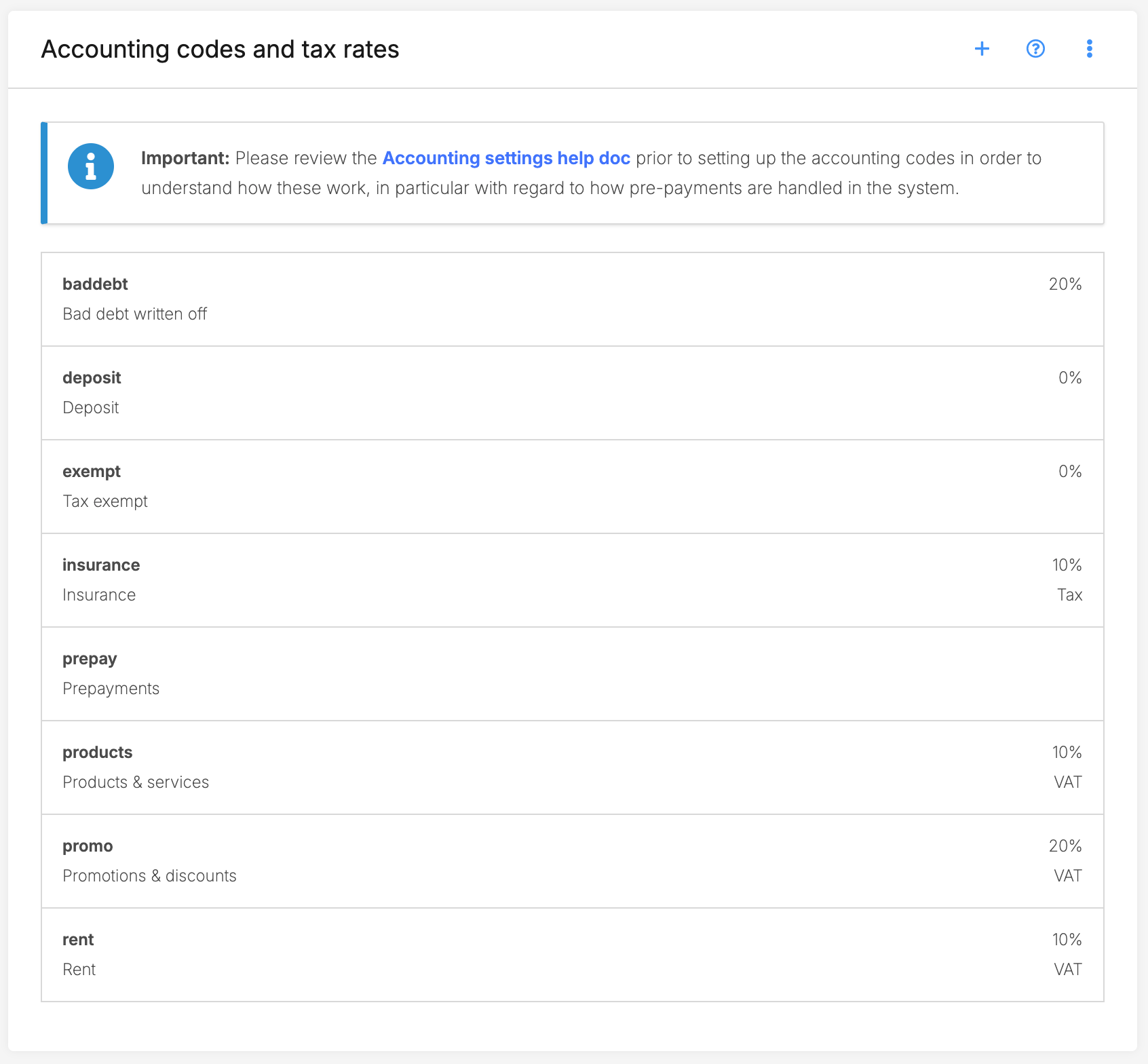
Creating an accounting code
Click on the + icon to add an accounting code.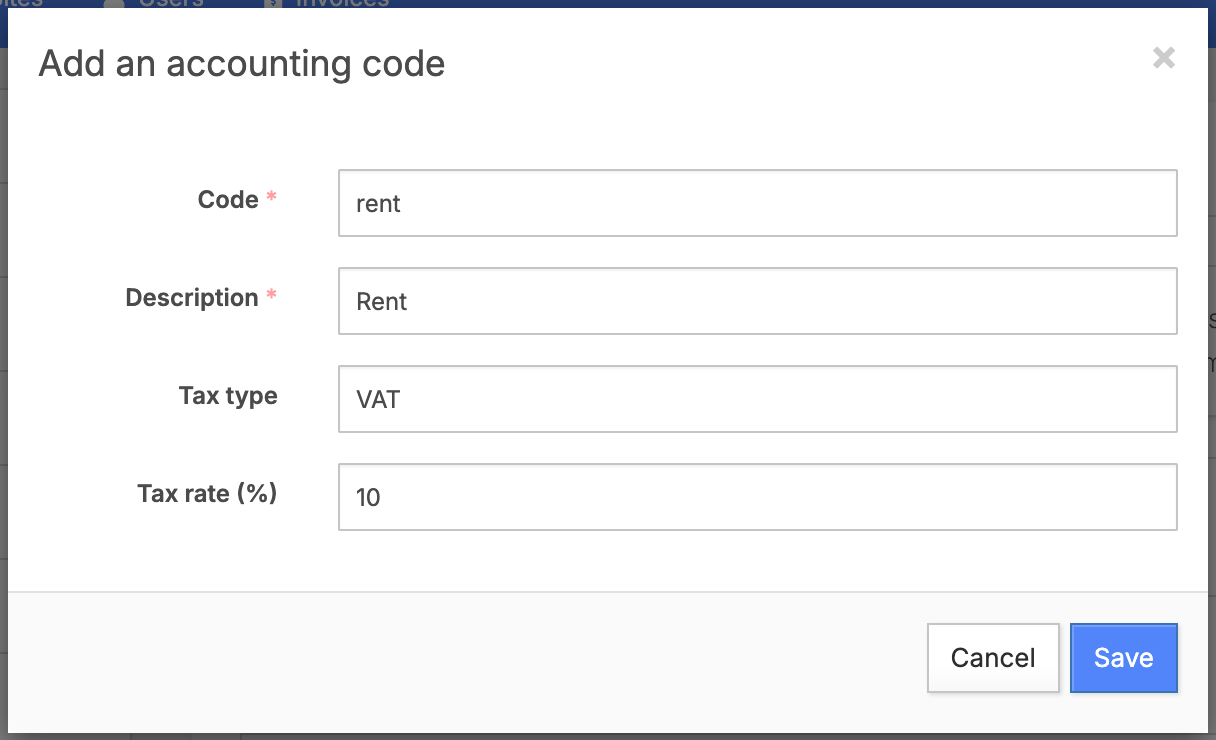
- Code: Enter the account code (alphanumeric, lowercase & no spaces) here.
- Description: The description adds a bit more information on what the accounting code is for specifically.
- Tax type: Set the tax type applicable to this accounting code.
- Tax rate (%): Enter the tax rate amount as a percentage that should be applied to invoice items associated with this accounting code.
Deleting an accounting code
Please note that deleting an accounting code used in active invoices is not recommended as it could lead to discrepancies in your accounting records. Also, the system will not allow deleting the accounting code if it's currently being used.If the code has been used incorrectly, you may need to correct the invoices manually by applying the right code depending on the state of the invoice.System charges
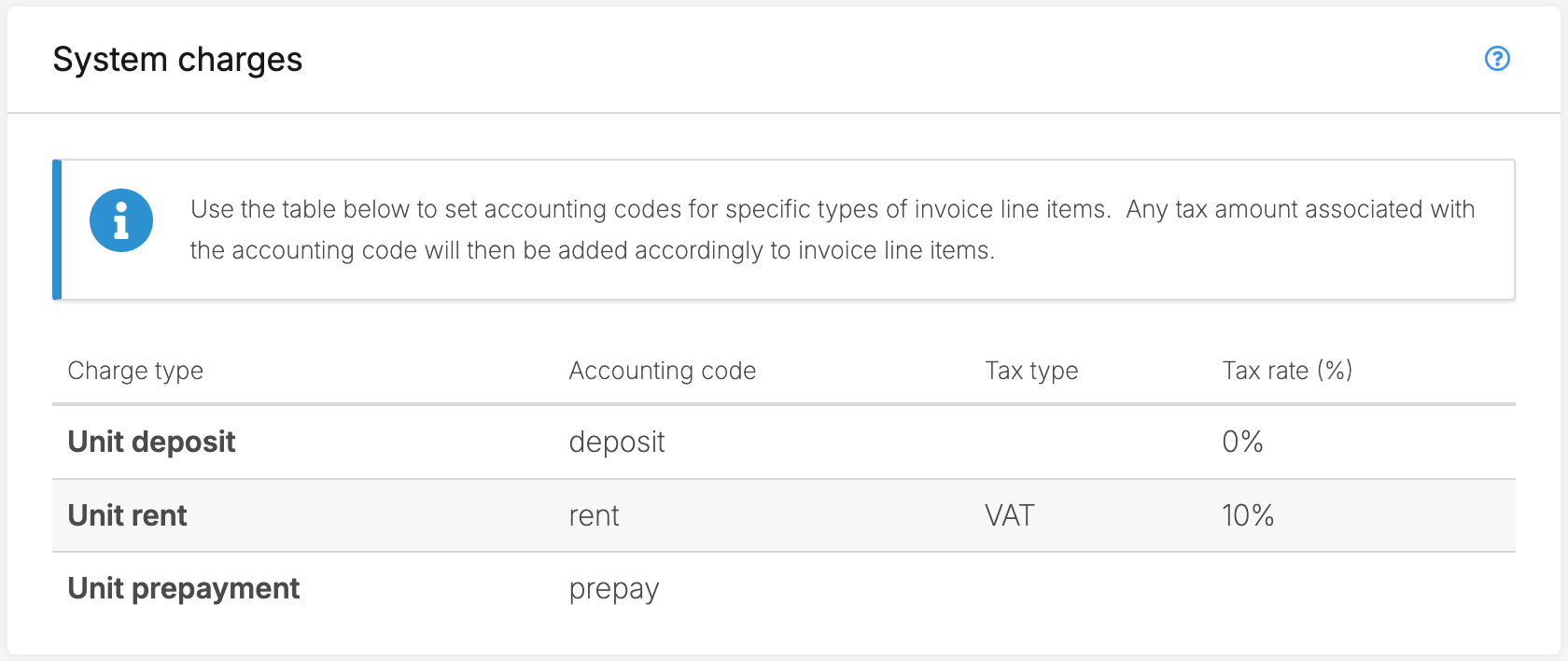
The system charges table is where you will set the accounting codes to be applied to unit deposit; unit rent; and unit prepayment charges in the system. You will first need to have the accounting codes setup and then you can choose from that list of accounting codes for each charge type.
Click on a charge type and in the modal select the accounting code (and consequently the corresponding tax type and tax rate) to be applied to that respective charge type.
Unit prepayment charges
Important: Prepayments will not have any tax rate applied to the invoice line item so leave Tax type and Tax rate blank for your prepayments account to avoid confusion. Prepayments will always apply the tax type and % for each corresponding prepayment with regards to the charge type that the prepayment is for.For example, in the case that a prepayment is for rent, it will take the rent tax type and tax rate to ensure that the correct prepayment is charged and applied in future invoices when that revenue is realized.Terminology
This section allows you to customize the default terminology that is used to describe different services in invoice line item titles. If nothing is set, the placeholder that is shown will be used.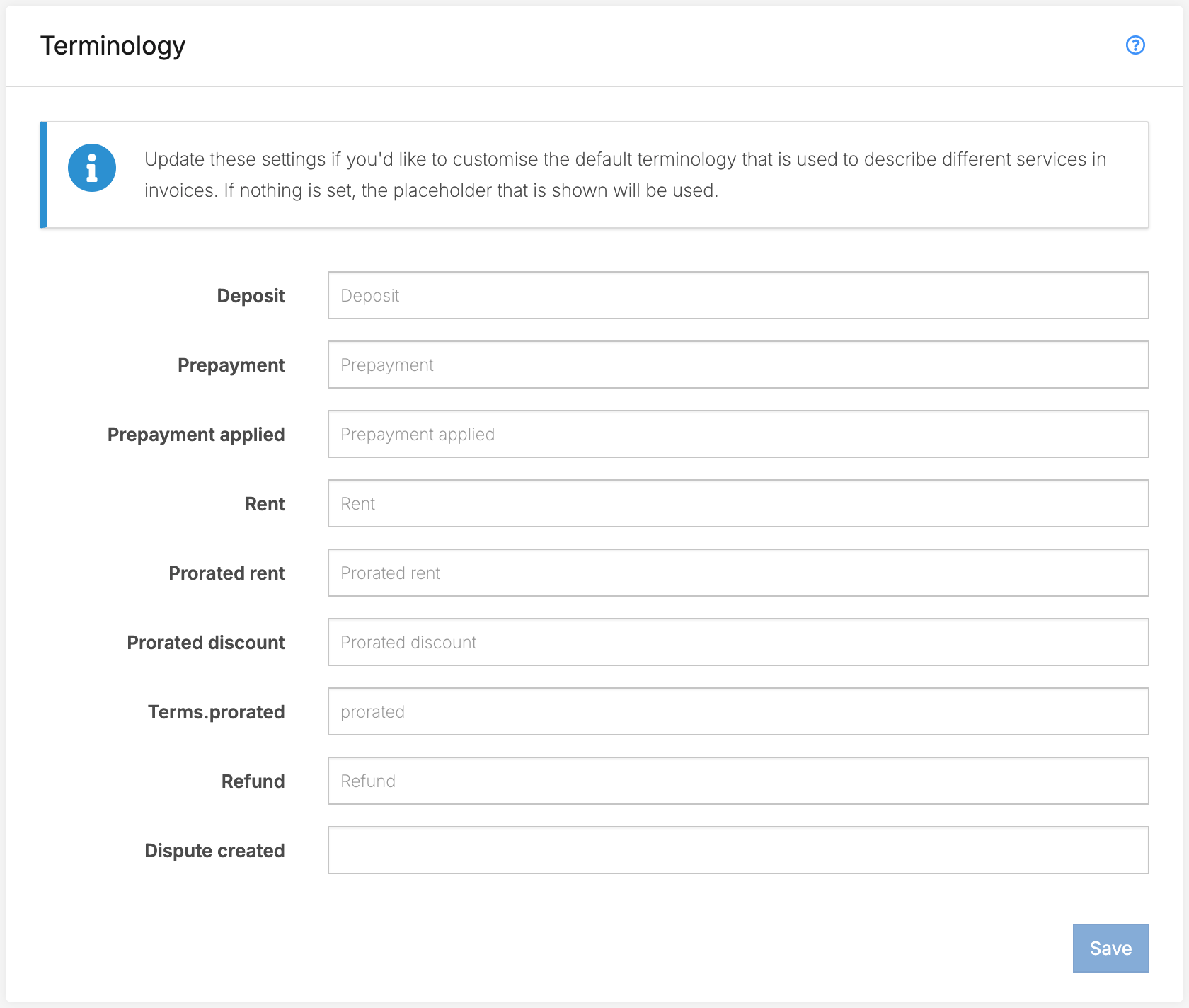
Jump to